VoiSAP — SAP Error Explained

"The data is locked by user and can be displayed only"
— what it means & how to fix it in SAP

A clear, practical guide to one of the most common SAP messages. Learn what an SAP lock actually is, how to view the data straight away, and how to safely clear a stuck lock entry using transaction SM12 — with real screenshots from a live SAP system (OBY6 shown as the example). By VoiSAP, a live SAP training provider.

SAP Lock Explained
Quick View Fix
SM12 Full Fix
Safety Guidance
2
Ways to Fix
SM12
Key T-code
3min
Video Guide
27K+
Learners Helped
📖 6 min read
Updated July 2026
Common SAP Error
Call Us
+1 416-569-4606
Email Us
contact@voisap.com
Book Free Demo Class
Start Here

The quick answer

30-sec read
Written by the VoiSAP training team · Updated July 2026 · Explained by practising SAP consultants.

The SAP message "The data is locked by user <name> and can be displayed only" means someone (or a leftover session) is holding an edit lock on the object you're trying to open, so SAP will only let you view it, not change it. You have two options: click Yes to open it in display-only mode, or — if you actually need to edit it and the lock is stale — clear the lock in transaction SM12 and reopen the object. This can appear in almost any editable SAP transaction; the screenshots here use OBY6 (Company Code Global Data) as the example.

Key takeaways

  • The message means another user or session holds an edit lock — you get read-only access.
  • Just need to look? Click Yes to open in display mode. Done.
  • Need to edit? Clear the stuck lock in SM12, then reopen the object.
  • Safety first: on a shared or production system, never delete a lock that belongs to someone genuinely still working — you can lose their data.
Watch First

Video walkthrough

3:03

A short walkthrough from the VoiSAP YouTube channel showing the message and both fixes. The written steps below follow the same flow, with screenshots.

Plain English

What the message actually means

SAP protects data with locks. When one user opens an object in change mode, SAP places an edit lock on it so nobody else can edit the same thing at the same time and overwrite each other's work. While that lock is held, anyone else who opens the object sees this message and is limited to display only.

So the message is not an error or a bug — it's SAP doing its job, protecting the data. The user name shown (for example SAP-USER38 in the screenshot) is simply who is holding the lock right now.
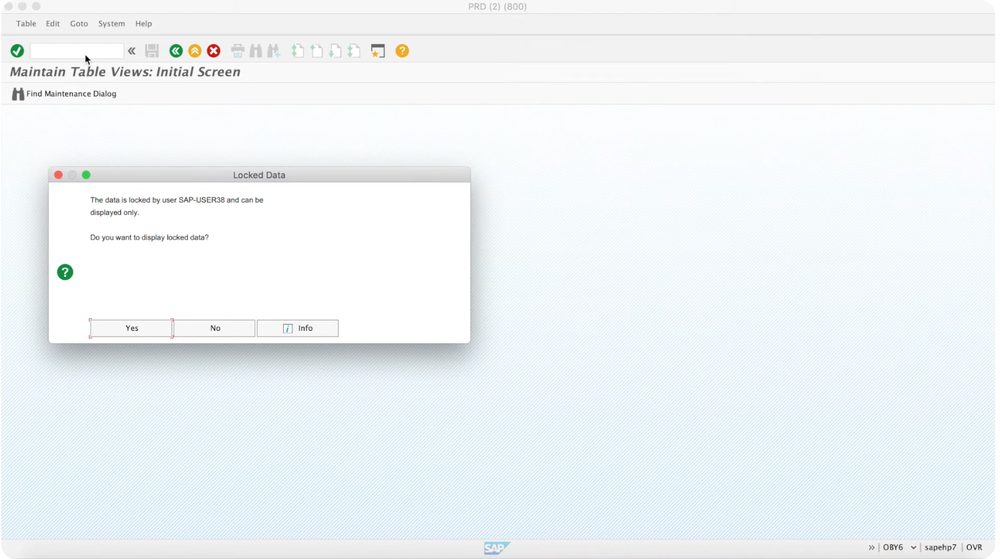
The Locked Data dialog in SAP: the data is locked by user SAP-USER38 and can be displayed only, with Yes, No and Info buttons
The exact message: "The data is locked by user SAP-USER38 and can be displayed only."
The data is locked by user SAP-USER38 and can be displayed only.
Do you want to display locked data?
Root Cause

Why it happens (three common causes)

Knowing the cause tells you which fix is safe to use:

1. Someone genuinely has it open

Another user really is editing that object right now. This is the lock working exactly as intended — you should wait, or edit something else.

2. A leftover "ghost" lock from a crashed session

The most common cause on training systems: a previous session ended abnormally (the GUI closed, the connection dropped, or the user was thrown out) and SAP never released the lock. Nobody is actually editing anything — the lock is just stuck. This is the case that SM12 is made for.

3. Your own earlier session

Sometimes the "other user" holding the lock is you, from an earlier session that didn't close cleanly. Very common when you log in twice or your last session dropped.

Fix 1

Quick fix: just view the data

10 seconds

If you only need to see the settings, not change them, this is instant and completely safe.

Click "Yes" on the Locked Data dialog

When SAP asks "Do you want to display locked data?", click Yes. The object opens in display-only mode — you can read everything, you just can't save changes. That's often all you need.
The locked data prompt asking Do you want to display locked data, the quick view-only workaround
Click Yes to open the object in display-only mode.
When this is enough: checking a configuration value, confirming a setting, or reviewing data. If you need to edit, go to Fix 2 below.
Fix 2

Proper fix: clear the lock in SM12

4 steps

If you need to edit the object and the lock is stale (a ghost lock or your own old session), you clear it in transaction SM12.

Read this first — the safety rule: deleting a lock that belongs to someone who is genuinely still editing can cause them to lose their work. On a shared training server or a production system, first confirm the user is no longer active (ask them, or check that it's a leftover session). On your own isolated system, it's safe. When in doubt, don't delete — wait, or ask a BASIS administrator.

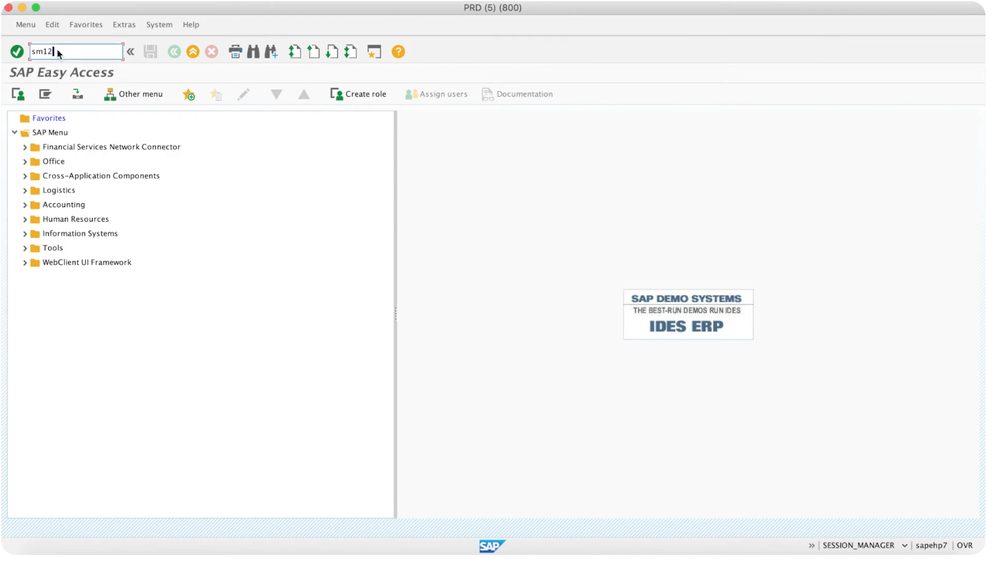
Open transaction SM12

In the command field at the top left, type SM12 and press Enter. This opens the Select Lock Entries screen.
SM12 Select Lock Entries screen with table name, lock argument, client and user name fields
SM12 → Select Lock Entries. Enter the user name, or leave the fields blank to list all locks.

Find the lock entry

Enter the user name from the message (or leave it blank to see every lock), then execute. You'll see the Lock Entry List — each row is one lock, showing the user, the table, and the lock time. In the example, user SAP-USER38 holds a lock on table T001 (the company code table behind OBY6).
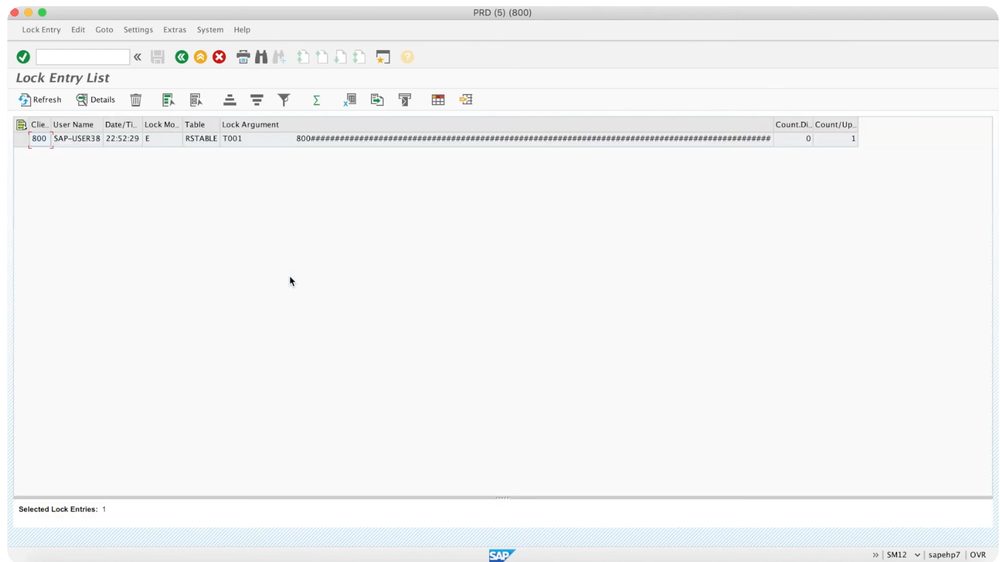
SM12 Lock Entry List showing a lock held by user SAP-USER38 on table T001 with lock mode E
The Lock Entry List: user SAP-USER38 holds a lock on table T001 (lock mode E = exclusive).

Delete the stuck lock

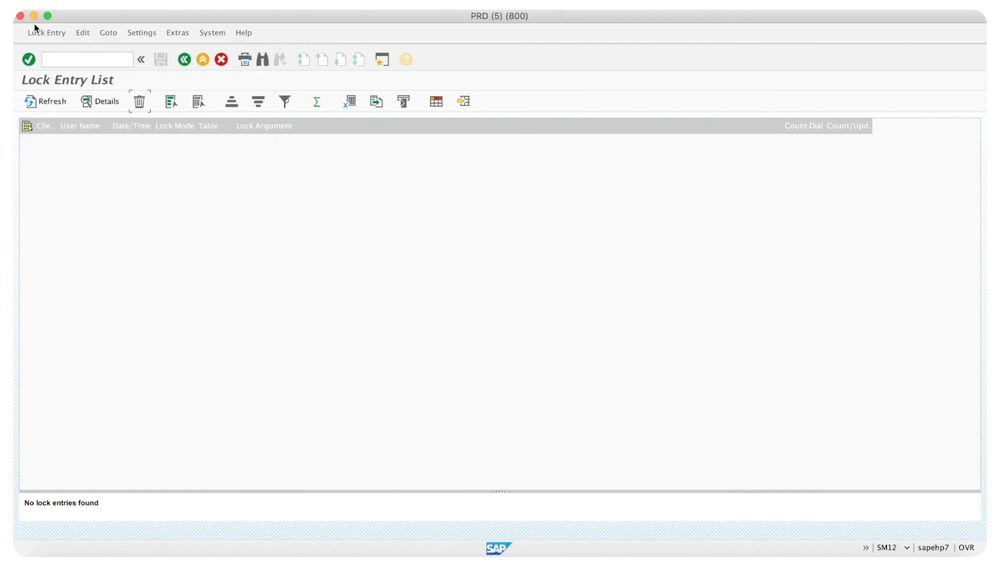
Select the lock entry and click the delete (trash) icon. SAP asks you to confirm — click Yes. After this, refresh and the list shows "No lock entries found", meaning the lock is cleared.
SM12 delete lock entry confirmation dialog with Yes, No and Cancel
Confirm the deletion of the stuck lock entry.
SM12 Lock Entry List showing No lock entries found after the lock was deleted
"No lock entries found" — the lock is now cleared.

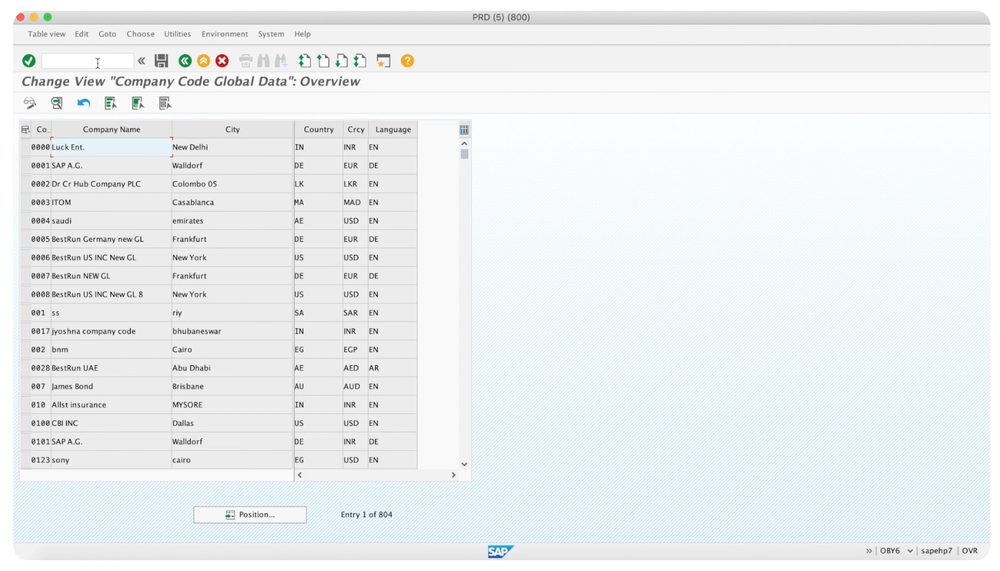
Reopen the object — now editable

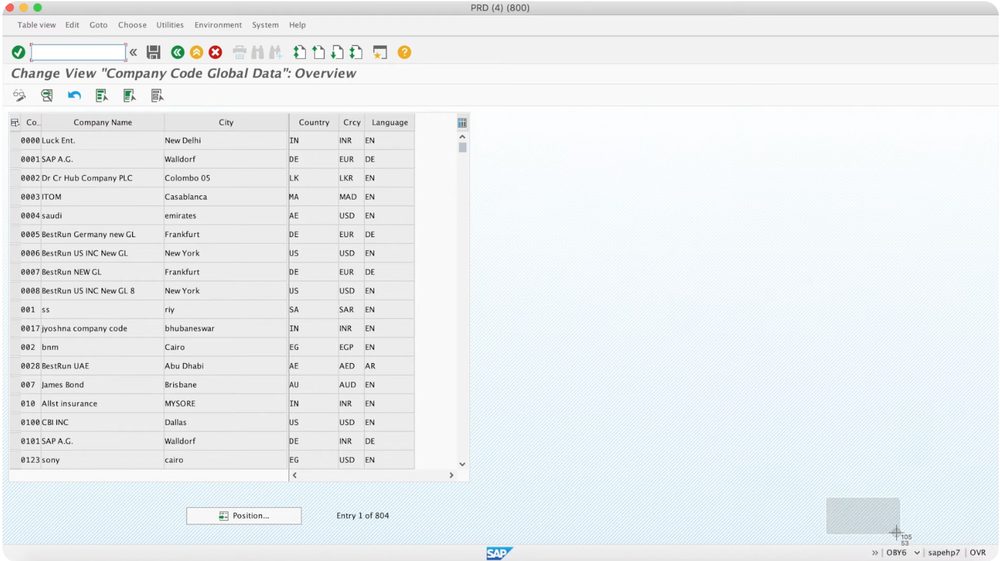
Go back into your transaction (OBY6 in the example) and open the object again. The Locked Data message is gone and it opens in full change mode, ready to edit.
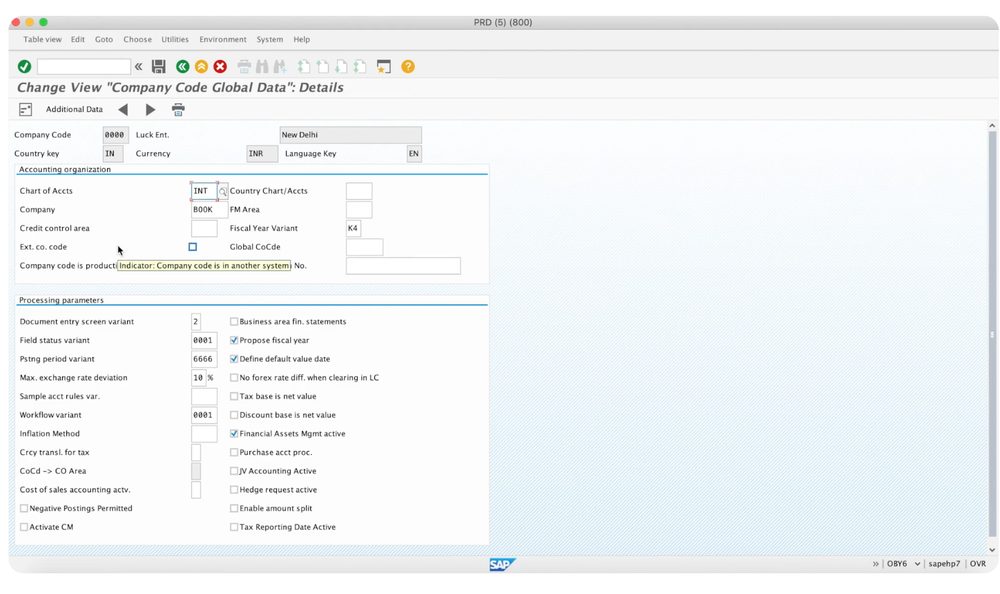
The Company Code Global Data table now open in editable change mode after the lock was cleared
Back in OBY6 (Company Code Global Data) — now open in editable change mode.
That's it — the lock is cleared and you can edit normally. If the lock keeps coming back, someone or a background job is genuinely still using the object — that needs investigating, not repeated deleting.
Quick Answers

FAQ & safety

No. It's SAP protecting the data. It means someone (or a leftover session) is editing the object, so you get read-only access until the lock is released.
Click Yes on the Locked Data dialog. The object opens in display-only mode so you can read everything — you just can't save changes.
SM12 is the SAP transaction for viewing and managing lock entries. You use it to see who holds a lock on which object, and to delete stuck (ghost) locks left by crashed sessions.
It's safe when the lock is a leftover ghost lock or belongs to your own old session. It is NOT safe to delete a lock that belongs to a user genuinely still editing the object, because they can lose unsaved work. On shared or production systems, confirm the user is inactive first, or ask a BASIS administrator.
Then something is genuinely still using the object — an active user session or a background job re-acquiring the lock. Repeatedly deleting won't help; identify what's holding it (check SM12 user, SM04/AL08 for active sessions) rather than fighting the lock.
Lock mode E is an exclusive lock — only the holder can edit the object, and it can't be shared. It's the usual mode when a user opens something in change mode. Other modes include S (shared, read) and X (exclusive, non-cumulative).
No — this message can appear in almost any editable SAP transaction (master data, configuration, documents). OBY6 (Company Code Global Data) is just the example used here. The fix is the same everywhere.
Errors like this are everyday SAP life.

Learn SAP the way it's actually used —
real system, real problems, real fixes.

VoiSAP's live SAP FICO, MM, SD and User Level training gives you hands-on access to a real SAP system, so you learn to handle locks, config, and day-to-day issues with confidence — plus full career support for the Canadian market.

*Hands-on training on a live SAP system. Individual outcomes vary.

Related SAP resources
Ready to Start Your SAP Career?

Stuck on an SAP error?
Learn to fix them with confidence.

Book a free 30-minute demo class — see live SAP training on a real SAP system, and find out if VoiSAP is the right fit. No obligation.

Live SAP System Access
Real SAP training, not slides — FICO, MM, SD, and User Level.
Career Support Included
Resume, LinkedIn, mock interviews, and job search strategy.
96% Placement Outcomes*
Built around real project-ready SAP skills.
Canada-Focused
Brampton, Calgary, Mississauga, Kitchener and across Canada.
We received your request!
Our team will reach out within a few hours to schedule your free demo class.

No commitment required · Typically respond within a few hours

Chat on WhatsApp 📅 Book Free Demo